


Elementor #11140
MY SWITCH SUPERVISOR Wi Fi

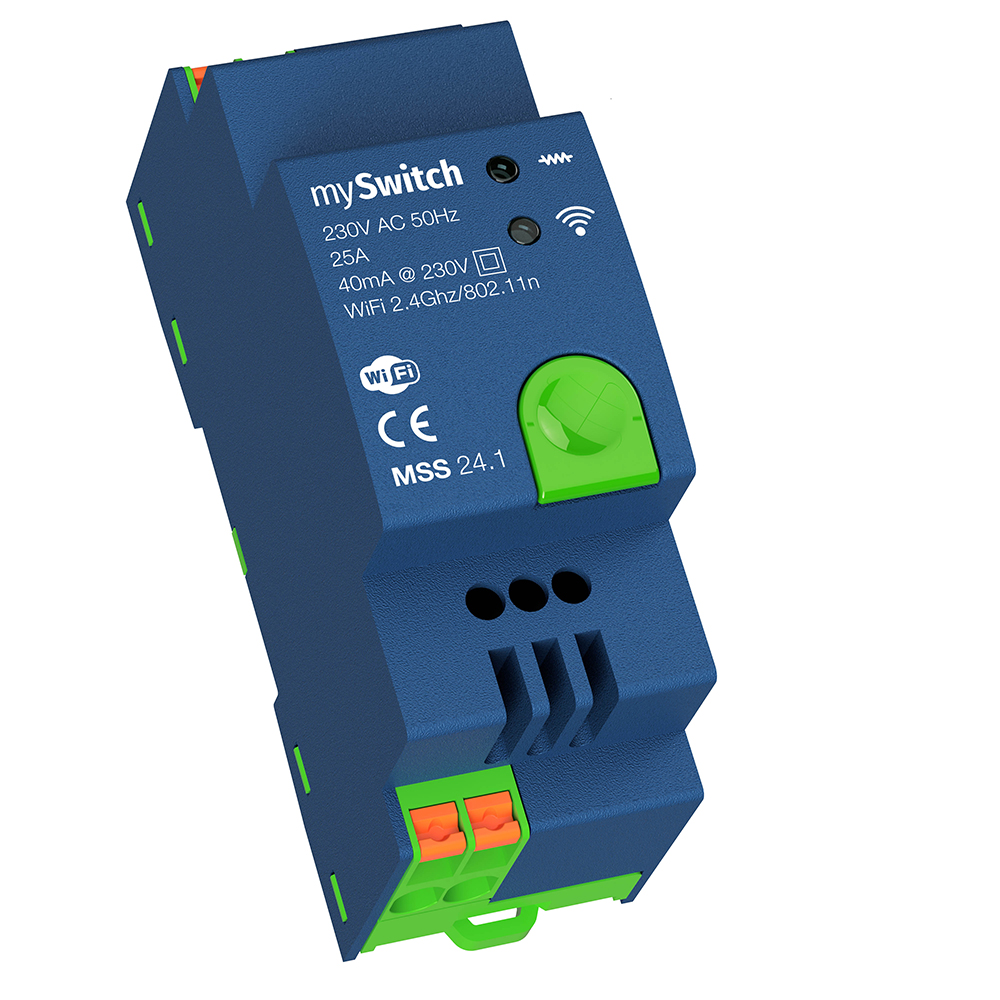
Αν θέλετε να έχετε πλήρη ενημέρωση, οικονομία, ασφάλεια και την διαβεβαίωση ότι το νερό θα ζεσταθεί, μέχρι τη δημιουργία θερμικού σοκ, τότε χρειάζεστε το My Switch Supervisor MSS-24 Wi Fi.
The ultimate Wi-Fi automation device for your home!
Διάγνωση σε Πραγματικό Χρόνο
Με την εντολή ενεργοποίησης, σας ενημερώνει άμεσα αν:
• The resistor is functional or burnt out
The thermostat is in good condition
The water is hot or cold
* Για να γνωρίζετε εξ αρχής το αποτέλεσμα.
Έξυπνη Αυτόματη Λειτουργία
• There is no need to set an operating time.
• The device automatically adjusts the duration and stops when the water reaches the desired temperature.
Guaranteed Hot Water
• It stops the operation only when the water has reached the safe temperature set on the thermostat.
Care for Health
• It creates a thermal shock in the water to neutralize bacteria and the Legionella bacteria, which is responsible for forms of pneumonia.
Certified Safety
• Η μοναδική αυτόνομη συσκευή πιστοποιημένη για χρήση με ηλεκτρικούς θερμοσίφωνες σύμφωνα με τα Eυρωπαϊκά πρότυπα LVD, EMC και RoHS.
• Guaranteed connection safety, without unpleasant consequences.

Device size
• Για τη τοποθέτηση της συσκευής στον ηλεκτρικό πίνακα απαιτούνται μονάχα δύο θέσεις ράγας και κανένα επιπλέον υλικό.
Full control
• It features two built-in power relays certified at 25 Amps for switching the phase and the neutral
Easy installation
• Installing the device in a panel with an empty slot takes only a few minutes for a professional electrician
Safety
• The device provides continuous monitoring and has the ability to cut off the power supply to the water heater for safety reasons
Συνεχές ενημέρωση
During operation, it notifies you about:
• Network voltage
• Κατανάλωση συνδεδεμένης συσκευής σε KW.
* Ένδυξη κατανάλωσης σε αμπέρ.
• Electricity charge according to the provider.
Main features ή Key features
- It is a two-module DIN rail device.
- It has two built-in relays for phase and neutral interruption certified at 25 Amper
- It is certified to connect directly to an electric water heater without any additional hardware.
- It has its own application for Android and IOS called myswitch
- Through the application you can choose whether to connect to control the operation of the water heater or another electrical device.
- Can be programmed on a daily or weekly schedule
- It informs about the nominal voltage that supplies the connected electrical device, the consumption in Ampere, the consumption in Kwh as well as the consumption cost according to the electricity provider.
- Device registration and management
- Two functions: Water Heater and Other Devices
- Device sharing with other registered users
Electrical Characteristics:
MySwitch Supervisor MSS 24.1
- Input 230V AC 50Hz
- Consumption 40mA @ 230V
- WiFi 2.4Ghz/802.11n
- Bluetooth v5 BLE
- Export line GND Common
- Export indication 12V 10mA
- Max current 25Α
- Security Auto ΕCO and Safety time
- Εnergy monitor voltage/current/power factor
- Monitor accuracy ±0.65% FS
Operating Instructions
User Manual for the Device and the mySwitch Supervisor App.
This guide provides step-by-step instructions for setting up and using the mySwitch device and the mobile app.

What you will see on an installed device
1. Κουμπί Εκκίνησης/Διακοπής
- Short press: Turn the device on/off
- Long press (5 sec): Activate Bluetooth for pairing
- Long press (15 sec): Restore factory settings
2. White indicator with the WiFi symbol
- Slow blinking: The device is not connected to a Wi-Fi network
- Fast blinking: The device is in Bluetooth discovery mode
- Solid white: The device is connected to a Wi-Fi network
3. Red indicator with the power symbol
- Lit: The device is active and operating
- Off: The device is inactive
- Red and white indicator blinking: The device is in upgrade mode
Important note!
Do not disconnect or power off the device during the update.
Before proceeding with any of the following steps, the device must be installed in your panel by a professional electrician who has also performed a general check to ensure its proper operation. In order to complete the pairing process, the device must remain powered on throughout all of the following steps.
mySwitch Supervisor App
Download and install the mySwitch Supervisor app from Google Play (Android) or the App Store (iOS).
Turn on WiFi and Bluetooth on your phone and make sure you are on the same network as the mySwitch Supervisor device.

Create an Account
1. Open the app and select Sign Up (Εγγραφή).
2. Fill in:
- Email address
- Password (and confirmation)
- Preferred language
3 .Tap Register
Check it email your for the confirmation link and complete the activation of the account.


Add Device
1. From the Home Screen, tap Add Device (Add Device)
2. Tap and hold the press and hold the Start/Stop button on the device for 5 seconds until the white indicator starts blinking
3. Select Connect via Bluetooth (Connect via Bluetooth)
- The app will scan for available devices
- Select your device "MYSWITCH" and tap Finish
4. Connect to Wi-Fi
- Select your Wi-Fi network (only 2.4GHz is supported)
- Enter your Wi-Fi password and tap Check Wi-Fi Connection. Once successful, tap Next.
5. Complete Setup
- Name the device
- Select the Time Zone (e.g., Europe/Athens)
- Select the device type: Water Heater or Other Devices
- Confirm and save


Using the application
1. Αρχική Οθόνη
- View all registered devices
- Turn a device on/off using the switch on the side
2 Device Settings
Tap the device name to access the controls
- Timer: Set operating duration
- Scheduling: Set weekly schedules
- Notifications: Enable or disable notifications
- Energy Consumption: Monitor usage and cost
3 Weekly Scheduling
Tap the scheduling icon
- Select Add Event
- Select operating days (e.g., Mon, Tue, Fri)
- Set the Start Time and End Time
- Tap Confirm
Timer
- Tap the timer icon
- Tap the timer icon
- Set the duration and confirm with Confirm
Important update!
By selecting a time, the device will wait to be activated using the main button


Device Management
1 Device Settings
Device History
- Tap Settings
- Use the Clear History button to delete all data.
- Confirm the action.
2 Device Deletion
- Tap Settings of the device you want to delete.
- Press the Delete button to remove the device from your account
- Confirm the action.
3 Device Sharing
- Select Share Device.
- Enter the recipient's email (must be a registered user).
- Tap Share.


What to do in case of inability to connect to the device.
The device is not connecting.
- Make sure the device is powered on and in pairing mode.
- Make sure your phone is within Bluetooth range.
- Check that the Wi-Fi network supports 2.4GHz.
Device Reset
- Press and hold the Power/Stop button for 15 seconds until the white indicator blinks rapidly.

